Tasks

AI task boards from text or files.

Drop in a plan document or type what needs doing, and a structured task list comes back, ready for you to review and confirm.

What it does

A new project starts as a plan document, a punch list, or a wall of notes, and structuring it into trackable work eats time before anyone starts. Tasks is a shared board for notes that now sit scattered across different utilities, shared across projects and people, right there in the same platform, and what goes on it feeds the organization's knowledge base. Upload a project plan, or type a description, and AI proposes a structured set of tasks with priorities, due dates, and checklist items. You review the list, choose which to include, and confirm the rest onto the board.

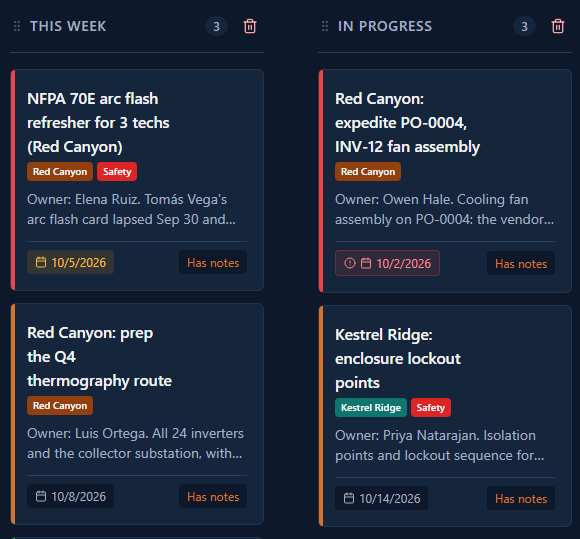
A two-column board holds task cards tagged by project, each with an owner, due date and notes.

How it works

  1. 01

    Choose your input

    Open Tasks and choose how you want to add work: type a description, or upload a file (PDF, CSV, spreadsheet).

  2. 02

    AI generates tasks

    AI generates a proposed task list with titles, priorities, due dates, and checklist items drawn from your input, placed into your board's existing columns.

  3. 03

    Review the proposal

    Review the proposed tasks. Choose which to include, discard the rest, and add the selected tasks to your board.

  4. 04

    Track on your board

    Confirmed tasks appear on your board. Drag cards between columns to track progress.

  5. 05

    Add details as you go

    Add comments, labels, checklist items, or an existing Library document to any task as work progresses.

Use cases

Utility contractor crew lead

Receives an outage response plan as a PDF. Uploads it into Tasks. AI extracts action items into cards with priorities, placed into the board's existing columns. Crew lead reviews, confirms the ones that apply, and the team has a shared board.

Water treatment plant operator

Gets a vendor commissioning checklist via email. Drops the spreadsheet into Tasks. AI reads the header row and the first rows of data and proposes cards with due dates. Operator adjusts timelines, confirms, and tracks progress through startup.

Construction superintendent

Needs to organize a subcontractor scope of work across multiple trades. Types a summary of deliverables. AI proposes tasks placed into the board's existing columns. Superintendent reviews and commits the ones that apply.

AI capabilities

Task generation from any input

Typed text, PDF, CSV, or spreadsheet. AI proposes structured tasks placed into your board's existing columns.

Review before it's on the board

The Task Builder's generate step is a proposal only. You choose which tasks to include and confirm before they're added to the board.

In-application AI assistant

Ask questions about your board or request help organizing work without leaving the screen. The assistant operates within your permission level, and creating or updating a task or comment can run directly; deleting always asks first.

Multimodal input

Typed text or document input. Describe tasks from the field, at the array, in a vehicle.

Value and integration

What you gain

  • ▸A plan document becomes a reviewable task list you confirm onto the board, instead of an afternoon spent reading it line by line.
  • ▸A typed punch list becomes trackable work with priorities and due dates already proposed.
  • ▸Tasks placed directly into your board's existing columns, ready to review and confirm.

How Tasks connects to OpCor

  • ▸Library: A task can attach an existing Library document for reference.

See Tasks running

Tell us what you want to see in Tasks and pick a time that works for you. On the call we listen to your questions, then show you OpCor running on what you picked.